The Complete B2B LinkedIn Ads Guide
Most B2B business owners know advertising on LinkedIn is a must, but most are doing it wrong.
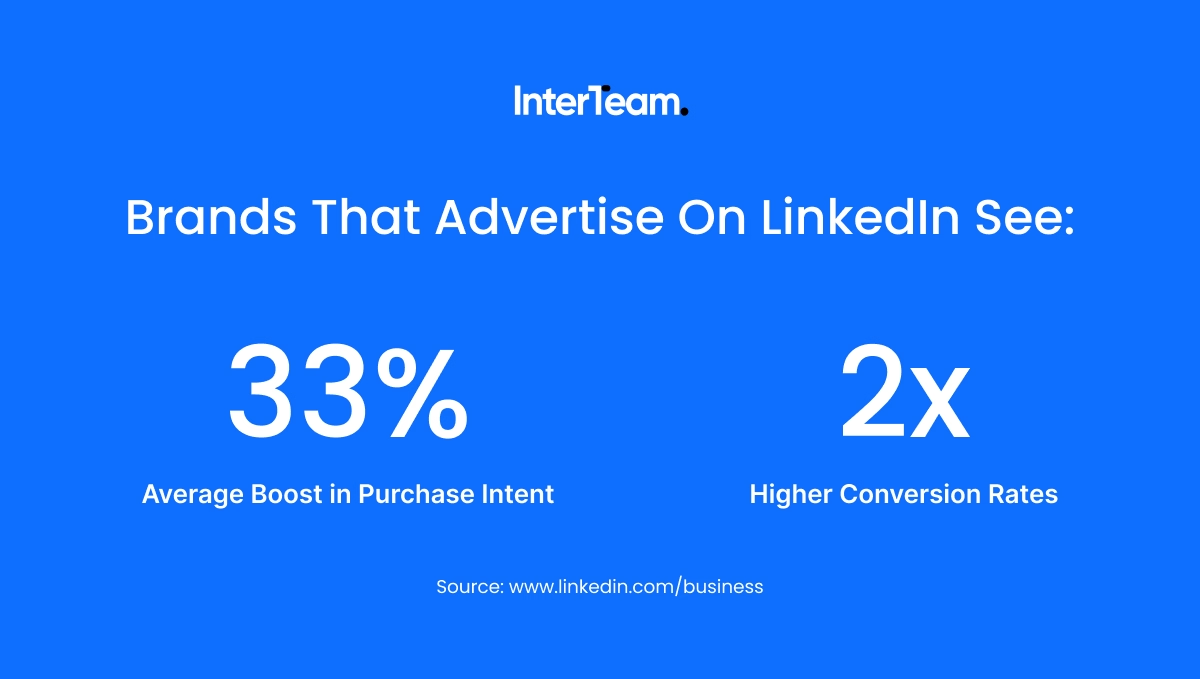
LinkedIn isn’t like other platforms. Its audiences include some of the highest-intent B2B buyers, with brands that advertise on the platform seeing an average 33% boost in purchase intent and 2x higher conversion rates, as reported by LinkedIn.
However, while LinkedIn is one of the top advertising channels for driving B2B conversions, it also has some of the highest CPCs of any platform, meaning accessing these audiences comes at a premium.
That’s why we put together this complete B2B LinkedIn Ads guide.
In it, we break down the exact strategy we use to generate scalable results for our clients, from structuring accounts and campaigns to building high-intent audiences and choosing the right ad types to drive leads at lower CPLs.
In Case You Weren't Already: Here's Why You Should Be Advertising On LinkedIn
LinkedIn is where business professionals go to talk about business topics.
It is home to more than 1.3 billion members across over 71 million different companies listed on the platform, and each one is there to take part in industry-related conversations.
It is the only major ad platform that allows advertisers to reach real decision-makers based on professional profile data. As a result, the platform’s B2B audience targeting is unmatched, with filters that allow you to target users who directly match your ICP.
This precision targeting by job title, seniority, company size, and industry helps focus budgets on higher-quality leads, but it is largely used as an educational and informational platform. People don’t realize this, but LinkedIn is really a place where people go to learn, so the top-of-funnel content that works for us is primarily educational content.
However, while LinkedIn can convert well with more aggressive CTAs for bottom-of-funnel campaigns, it often underperforms when trying to convert cold leads in the top-of-funnel with aggressive CTAs.
That’s why LinkedIn performs best as a retargeting platform as part of a broader omnichannel advertising strategy. By combining the platform’s ICP targeting filters with strong retargeting lists, advertisers can generate conversion rates that justify LinkedIn’s higher CPCs and make it a powerful channel for down-funnel conversions.
In the sections below, we provide the exact strategies we use to do it.
Setting Up Your LinkedIn Ads Account
Before you can start running ads, you need to set up your LinkedIn Ads account. Many advertisers fall into the trap of rushing through this step, but account structure can play a pivotal role in determining the results of your campaigns.
Here are the steps we take to ensure our ad accounts are optimized from the start.
Create Your LinkedIn Ads Account
The first step to planning your LinkedIn Ads campaign is accessing Campaign Manager.
If you’re starting from scratch as a new advertiser, you’ll need to create a new LinkedIn Ads account.
If you’re joining an existing ad account, make sure you have Content Admin access to the Company Page, as you won’t be able to create or post ads without it.
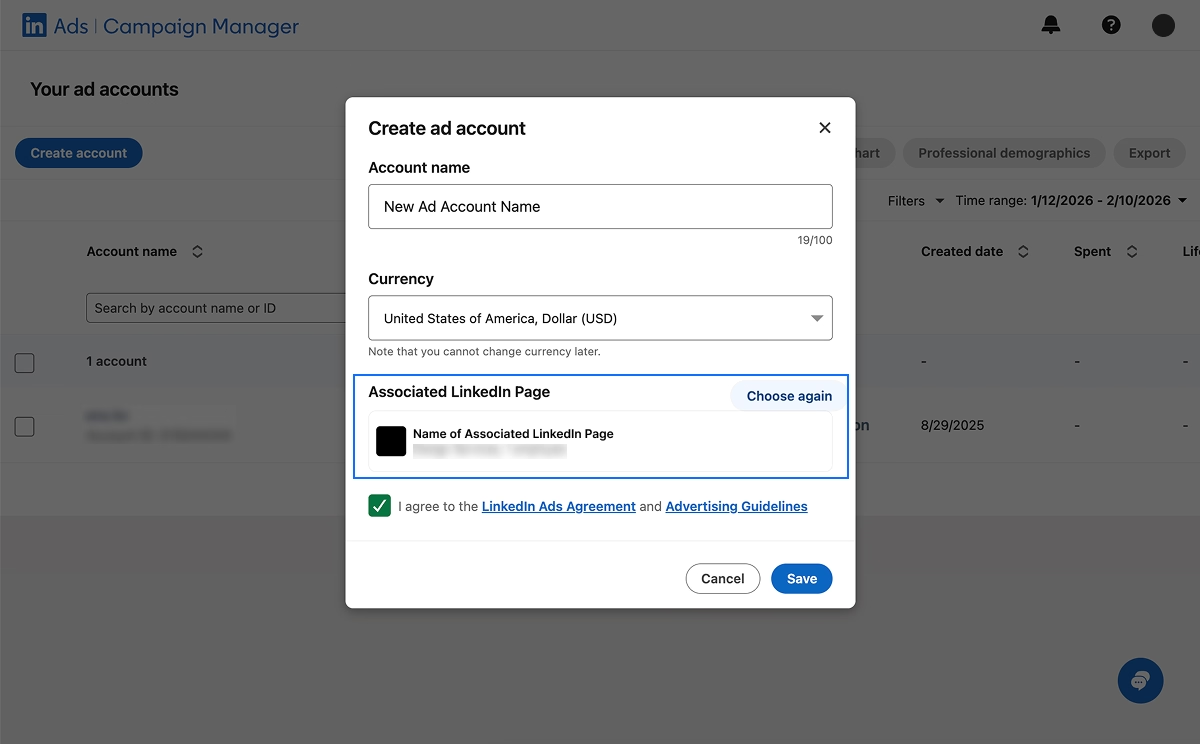
Connect Your Company Page
Once your ad account is created, you need to connect your Company Page. This is required to unlock most LinkedIn ad formats.
On LinkedIn, ads inherit the trust and credibility of your Company Page. As a result, even early-stage B2B companies should have a clean, complete page before launching campaigns.
A few optimizations we like to have in place include:
- Optimizing the banner on your Company Page
- Adding a call to action that sends users to your website
- Building out the featured section
- Adding a pinned post with a CTA
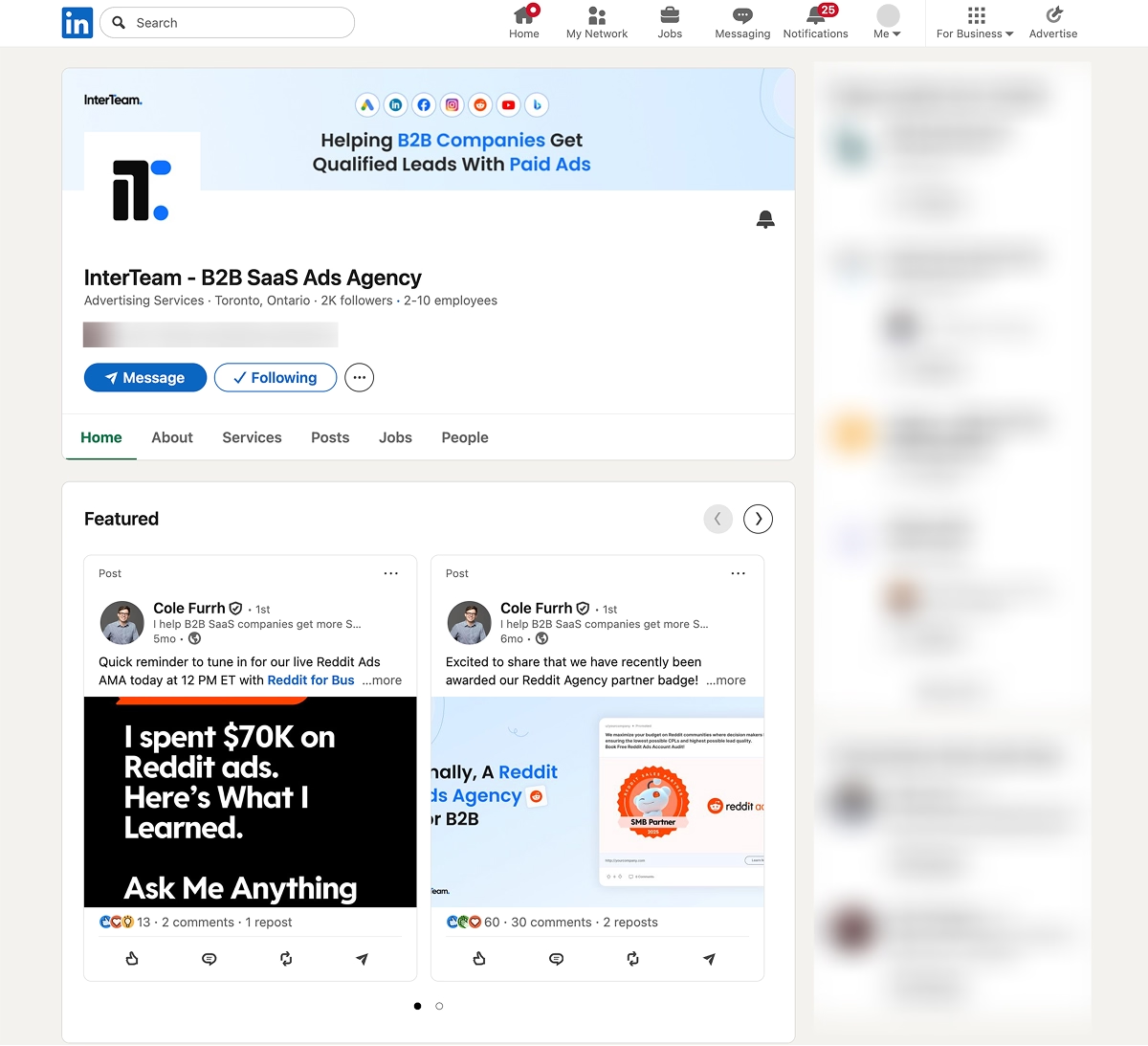
For more help, check out InterTeam's LinkedIn profile for an example of an optimized LinkedIn Company Page.
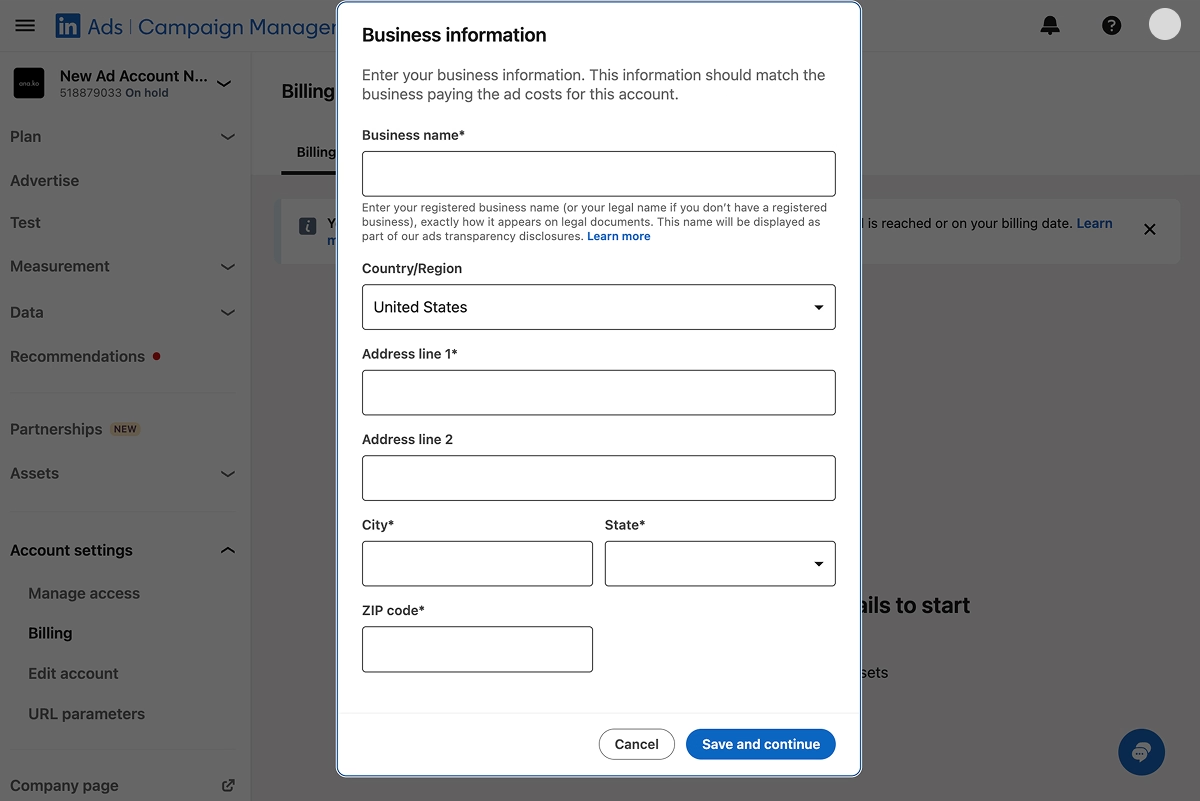
Add Billing and Set Initial Spend Controls
The next step is adding your billing information. This must be added before you can launch a campaign.
LinkedIn suggests a currency based on your account location during setup, but you can change it at that time. Just be sure to have the appropriate currency selected before finalizing your account, as this setting cannot be changed once an account has been created.
Install the LinkedIn Insight Tag
At this point, you can finalize your settings and click the "Create Account" button, but setup isn’t complete. You still need to install the LinkedIn Insight Tag.
The Insight Tag is required for:
- Conversion tracking
- Building retargeting lists
- Applying audience exclusions
You can install the tag either through Google Tag Manager or by adding the code directly to your site.
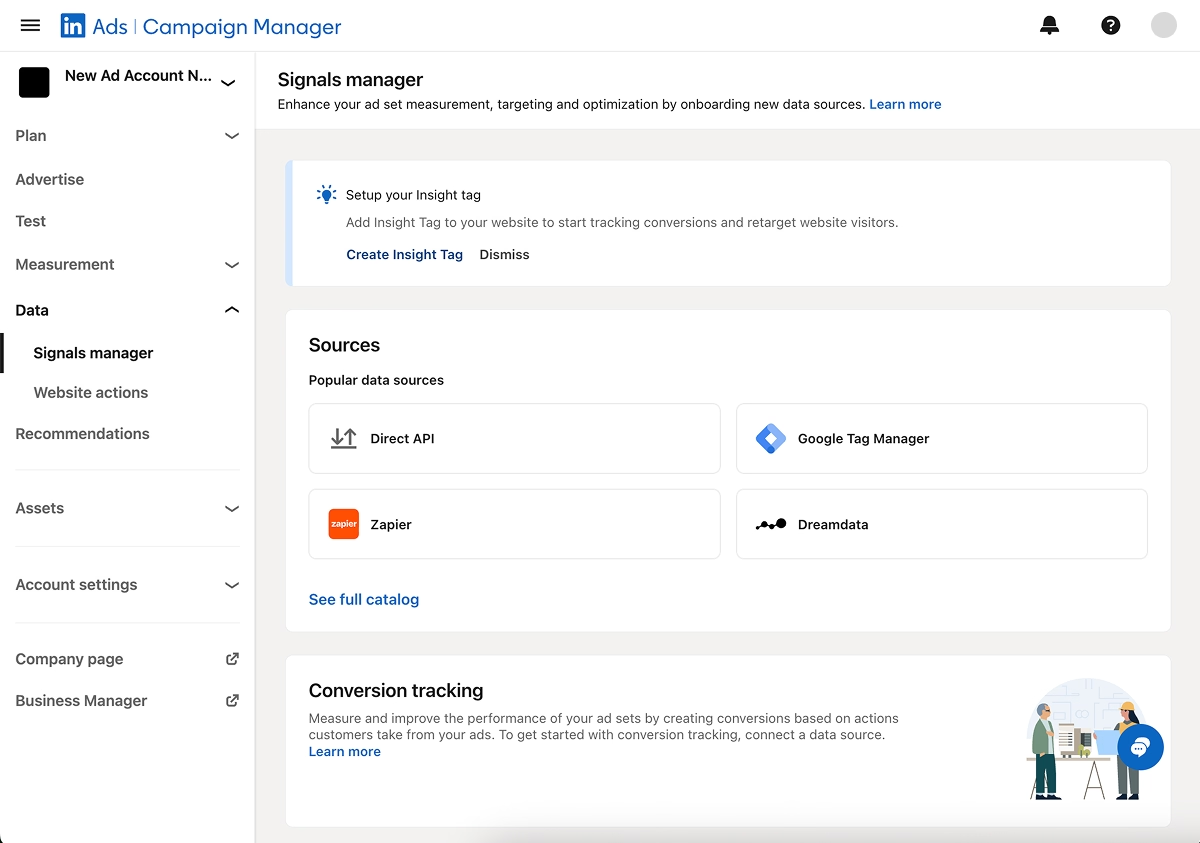
Do not try to scale campaigns without the Insight Tag in place. Without it, LinkedIn does not have the data it needs to optimize your ads properly and will often prioritize volume over quality, resulting in unqualified leads and higher CPLs.
Set Up Conversion Tracking
LinkedIn uses account-level conversions. This means conversion events are shared across all campaigns within your ad account. As such, these should be defined before launching your campaigns.
Start by defining core actions. Some that we use include:
- Demo requests
- Lead submissions
- High-intent page visits
Then, you want to make sure your account is properly connected to your CRM. This allows you to attribute conversion events to different sales cycle stages.
With proper CRM integration and high-intent conversion actions in place, LinkedIn can pull enough data to optimize for high-intent audiences, meaning your campaigns are more likely to reach qualified conversions while cutting unqualified form fills.
Set Up a UTM Tracking at the Account Level
You can set UTM parameters to individual ads, but it is much easier to apply this template at the account level.
Here is the template we use:
utm_campaign={{CAMPAIGN_NAME}}&account_id={{ACCOUNT_ID}}&utm_source=linkedin&utm_medium=paid_social
By applying this layer, you ensure clicks from your Google Analytics campaigns are properly attributed to leads in your CRM, making it easier to optimize campaigns around life cycle stages and use that data to build and refine retargeting audiences.
Check out the video below for a complete walkthrough on how to set up your account-level UTMs:
Structuring LinkedIn Ads Campaigns & Ad Sets
Once your LinkedIn Ads account is set up, the next step is creating your campaigns and ad sets.
It’s important to note that LinkedIn recently changed its terminology. What used to be referred to as Campaign Groups are now simply known as Campaigns, while the former Campaigns are now known as Ad Sets. This change was made to reflect standardized terminology used on other platforms.
The following are the steps we use at InterTeam to ensure our campaigns and ad sets are optimized for success. You can also watch the video below to see our process in action.
Step 1: Create a Campaign
Start by creating a campaign in the Advertising dashboard of Campaign Manager.
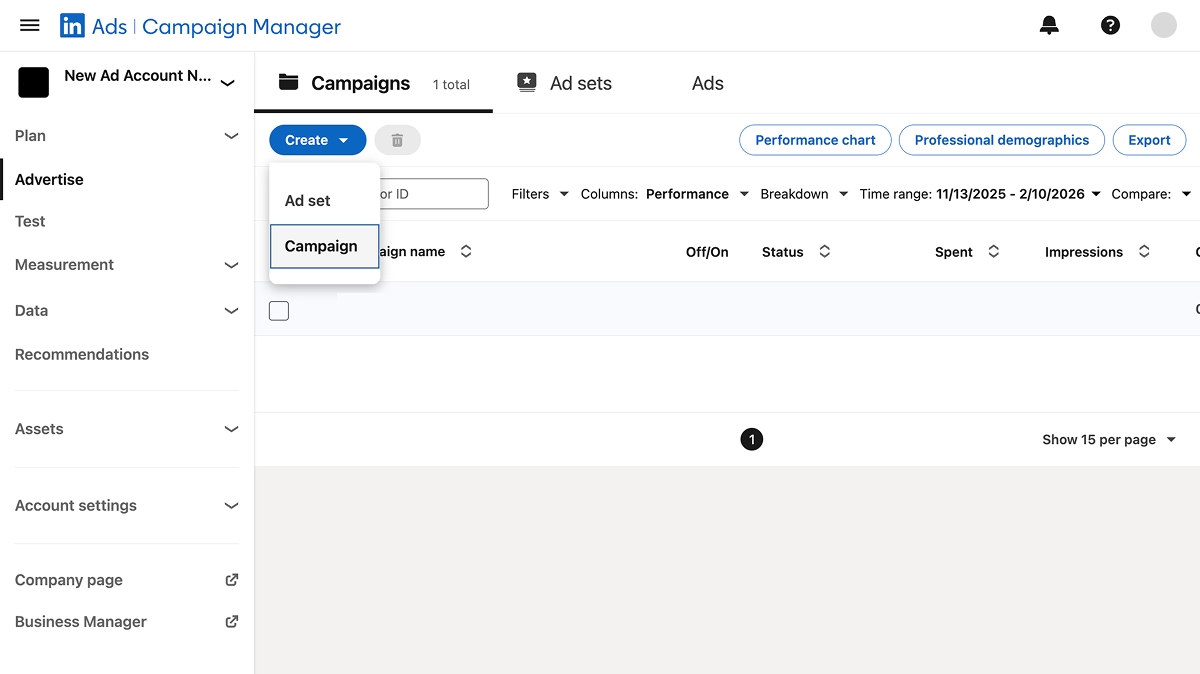
LinkedIn lets you choose between Classic and Accelerated Campaigns. Accelerated uses LinkedIn’s automation and machine learning to simplify the process, but we always suggest sticking with Classic, as it gives you more control over targeting, bidding, and testing, which leads to more efficient campaigns.
Campaign names should follow a clear and consistent structure so that you can identify them later for reporting and analytics. At InterTeam, we use a structure that incorporates the funnel stage, campaign objective, the date, and the company name.
Here is an example:
- RTG - Lead Generation - 10/8/25 - IT
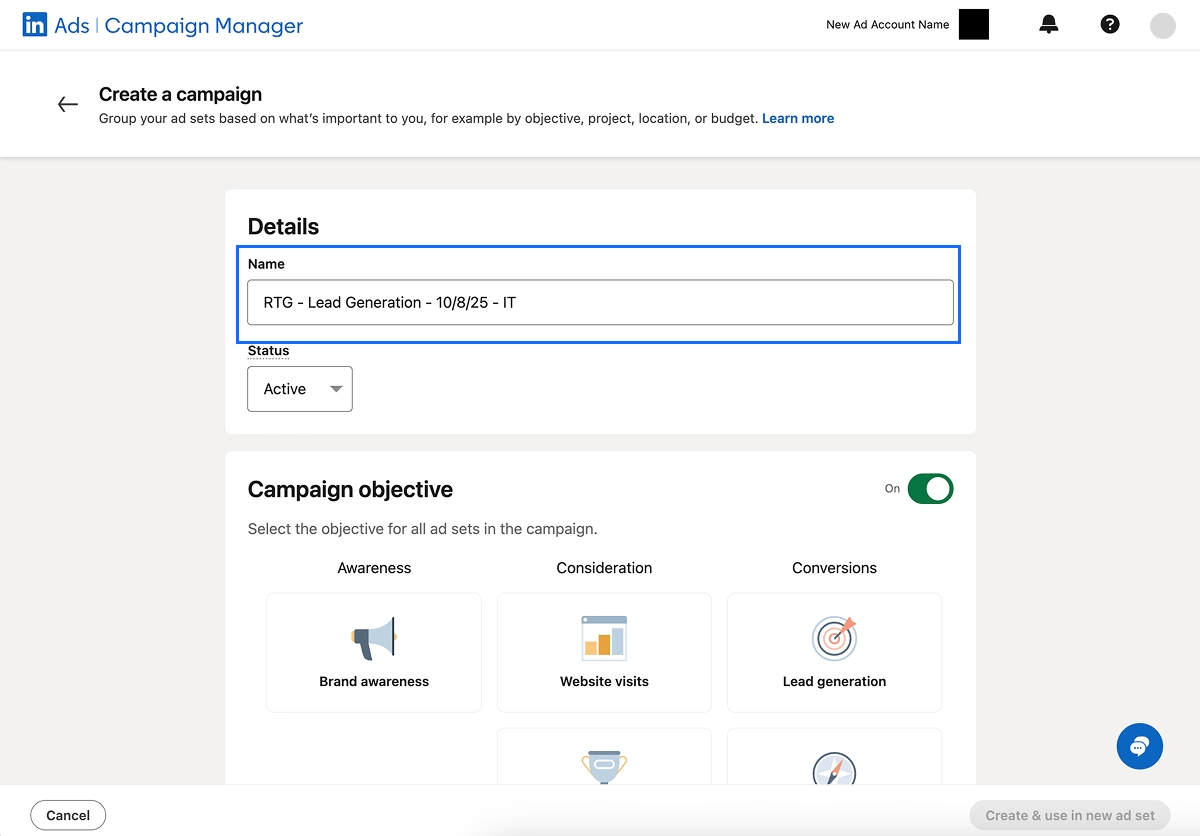
From there, you have the option of setting campaign-level objectives and budgets. These can also be set at the ad set level, but campaign-level settings can be helpful when grouping together ad sets that have the same objective or share a budget.
Step 2: Create an Ad Set Inside the Campaign
Next, you’ll want to enter the new campaign you just set up and create a new ad set within that campaign.
As with campaigns, you want to start by giving the ad set a clear and consistent name.
For ad sets, our naming structure includes the audience type, lookback window, industry, geography, date, and company name.
This is what it looks like:
- RTG - 90 Day Visitors - Skilled Nursing - USA - 10/8/25 - IT
These simple naming conventions allow us to quickly identify the ad set, which makes analytics, reporting, and testing a lot easier as the campaign goes on.
Step 3: Choose An Ad Set Objective
Under the campaign name, you also have the option of applying an ad set–level objective. This option is only available if you didn’t apply an objective at the campaign level.
LinkedIn provides six different campaign and ad set objectives. Each one determines how LinkedIn will optimize your ads for delivery:
- Brand Awareness – Optimizes for reach, making it effective for top-of-funnel campaigns
- Website Visits – Optimizes for traffic to your website
- Engagement – Optimizes for likes, shares, and clicks to help warm audiences
- Video Views – Optimizes for video consumption and is limited to video ads
- Lead Generation – Optimizes for form fills and unlocks native Lead Gen Forms
- Website Conversions – Optimizes for specific actions taken on your website and requires conversion tracking
At InterTeam, we typically use 2 objectives:
- Lead Generation objective: This unlocks LinkedIn’s native Lead Gen Forms, which can be applied to select ad formats, including single image, carousel, video, document, and conversation ads.
- Website Conversions: This allows us to optimize campaigns around direct actions taken on the website, and with proper CRM integration, gives us more control over optimizing for different stages of the sales cycle.
Step 4: Configure Core Ad Set Settings
LinkedIn provides several default settings for its ad sets, but these are not optimized for conversions.
There are a few core settings we always use, all of which have a direct impact on CPL and lead quality:
- Location Targeting: Set to Permanent Location
- Audience Profile Language: Set to Ad Language
- Audience Expansion: Disabled
- LinkedIn Audience Network: Disabled
- Ad Rotation: Rotate Ads Evenly
- Optimize for Performance: Disabled
By default, LinkedIn sets location targeting to recent or permanent. This tends to pull in a lot of unqualified leads, including users who recently visited the location on vacation. We set location targeting to permanent to only target users who actually live in the area.
Similarly, it’s extremely important to disable Audience Expansion. This setting allows LinkedIn to expand targeting outside of your set parameters, which increases the chances of attracting unqualified leads.
Another setting you always want to disable is the LinkedIn Audience Network. This setting expands your ad reach to channels outside of the LinkedIn platform, but it generates exposure among lower-intent audiences. For example, in the screenshot below, the campaign generated 100,435 impressions from the Audience Network, but only 17 impressions on the LinkedIn platform, which directly impacted lead quality.
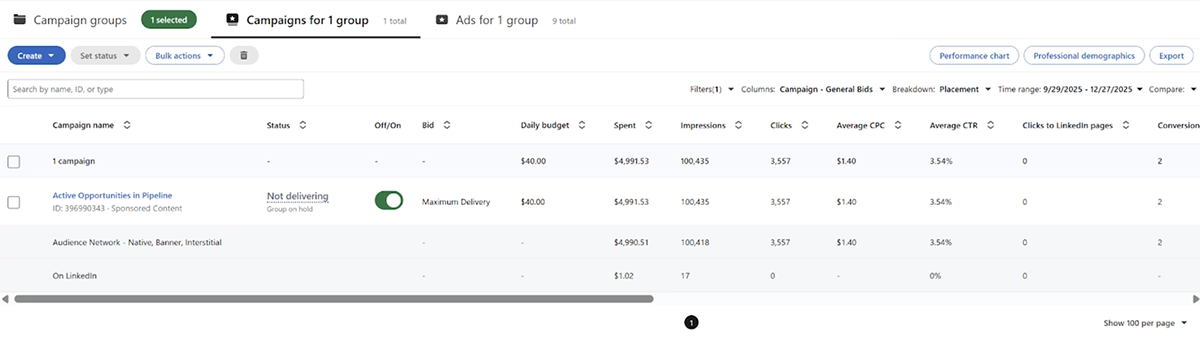
Finally, you want to set your ads to rotate evenly and disable Optimize for Performance. This ensures your ads are evenly distributed, helps avoid ad fatigue, and allows you to properly run A/B tests to optimize campaigns based on real data.
Step 5: Select Your Target Audience
Ad sets are also where you apply your audience targeting.
At this stage, you’re typically not building new audiences from scratch. Instead, you’re selecting from existing audiences that have already been created in the account.
There are two main audience settings available at the ad set level:
- Audiences – Uses first-party data to retarget website visitors or reach known contacts and accounts
- Audience Attributes – Adds professional targeting criteria such as job title, company size, industry, or skills
LinkedIn offers a wide range of targeting options that allow you to focus on ICP decision-makers. We provide more detail about how to build audiences and targeting strategies in the next section.
Step 6: Apply Exclusion Audiences
After setting your target audience, you also want to apply exclusion audiences. These are low-quality segments you don’t want wasting your ad budget, such as competitors, current customers, unqualified traffic, or your own employees.
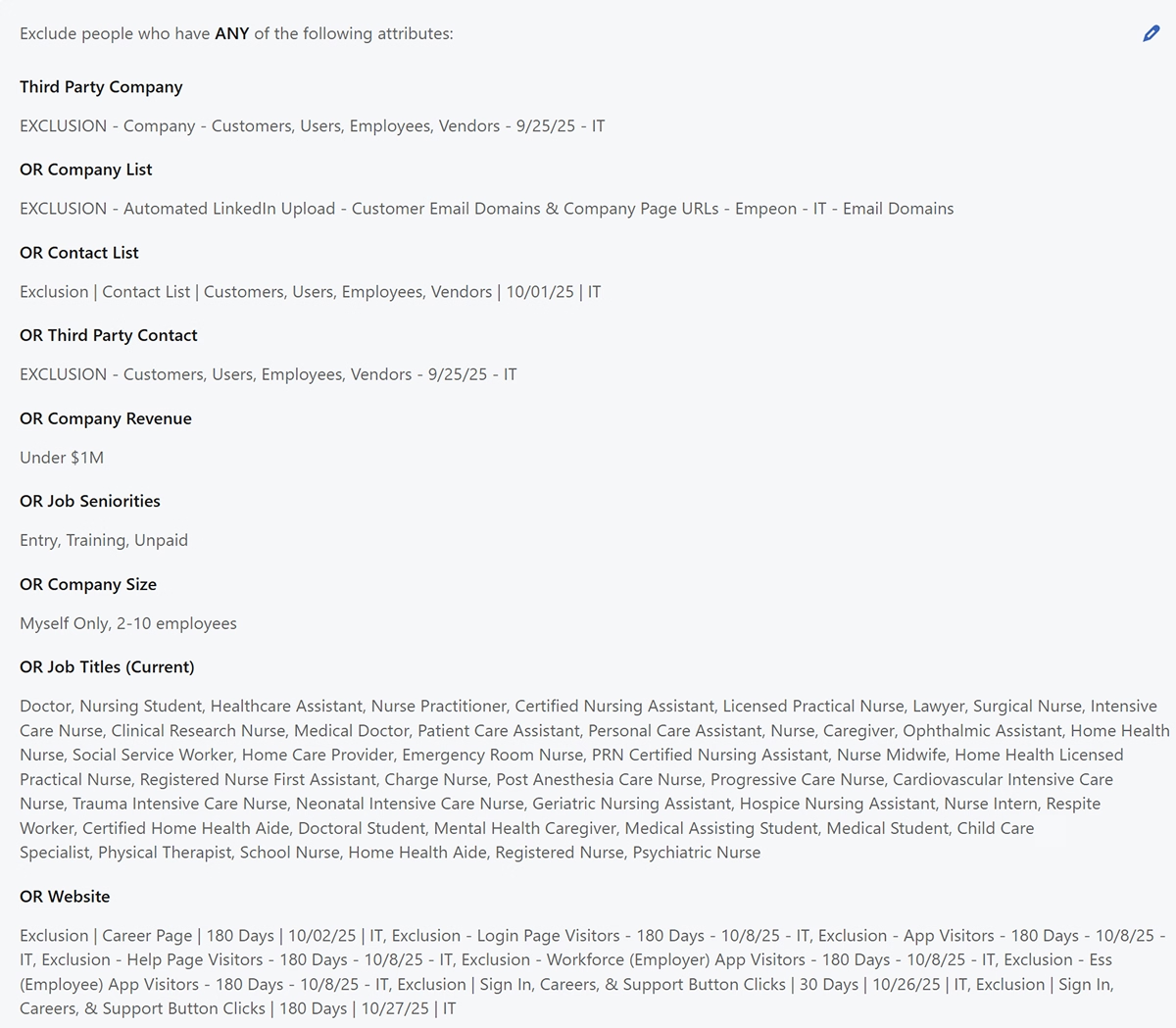
LinkedIn’s refined targeting filters also apply to exclusion audiences. Common exclusions include:
- Job seniority levels below your target audience, including Entry, Training, and Unpaid
- Company URLs for direct competitors, partners, and existing customers to avoid internal, research-driven, or non-commercial clicks
- Uploaded employee email lists to prevent internal traffic
- Company size classifications below your minimum target company size
You should also always exclude the “Myself” option. These exclusions provide a strong starting foundation, but campaigns should be monitored continuously, with low-quality segments added to exclusions as performance data comes in.
Step 7: Set a Bidding Strategy
The final step before launching your campaign is setting your bidding strategy. This controls how aggressively LinkedIn enters auctions and spends budget, which directly impacts delivery, CPL, and early performance.
LinkedIn provides three bidding strategies:
- Manual Bidding – Full control over bidding, allowing you to set a maximum cost per click (CPC)
- Maximum Delivery – A fully automated strategy where LinkedIn’s system sets the bid
- Cost Cap – A semi-automated approach where you set the cost per key result, but the platform sets the bid
In almost all cases, we recommend using manual bidding. It provides full control over your campaigns and allows you to monitor performance closely and make adjustments as more data comes in. For a deeper breakdown, you can check out our Complete Guide to LinkedIn Bidding Strategies.
Once your bidding strategy is set, you can save the campaign and allow it to enter delivery. Be sure to check in regularly to evaluate performance and adjust audiences and exclusions as needed to avoid underdelivery.
Audience Targeting & Segmentation on LinkedIn
LinkedIn’s high CPCs mean audience targeting can be the difference between high ROI and thousands of dollars in wasted ad spend. Luckily, the platform has one of the strongest targeting capabilities of any advertising platform.
On LinkedIn, targeting is applied in layers, starting with mandatory location and language filters, followed by audience attributes based on LinkedIn profiles, and custom audiences built from first-party data.
In total, LinkedIn provides over 20 different audience attributes and targeting categories. We provide a brief overview below.
These are the three main types of targeting options LinkedIn provides:
Location & Language Targeting
Location and language targeting is the first level of audience targeting you apply at the ad set level. These settings are required for every campaign and determine who is eligible to see your ads before any additional audience filters are applied.
There are two types of targeting within this layer:
- Location targeting – Targets members based on their permanent or recent profile location
- Profile language targeting – Limits delivery based on the language set on a member’s LinkedIn profile
While these settings may seem straightforward, mistakes at this level can limit the performance of your campaign regardless of any other targeting filters you apply later on.
Audience Targeting (Audience Attributes)
Audience targeting is the primary differentiator that separates LinkedIn from other advertising platforms. This layer of audience filters allows advertisers to reach users based on their professional identity.
Types of targeting within this category include:
- Company attributes – Target members based on company context, such as size, industry, or growth stage
- Job experience attributes – Reach users by job title, function, seniority, or experience level
- Education attributes – Target members based on degrees, fields of study, or schools
- Demographics – Limited professional demographic signals, such as estimated age or gender, where available
- Interests and traits – Inferred signals based on engagement and behavioral patterns
These attributes can be combined and layered to build audiences that closely match your ICP. However, applying too many filters can restrict delivery. LinkedIn requires a minimum audience size of 300 members, so precision needs to be balanced with reach.
Custom & Retargeting Audiences
The final targeting layer LinkedIn offers is custom and retargeting audiences built from first-party data or modeled from it.
Types of custom audiences you can build on LinkedIn include:
- Matched audiences – Custom audiences built from uploaded lists, CRM data, or platform integrations
- Website retargeting audiences – Members who visited specific pages or completed key actions on your website
- Ad engagement audiences – Users who interacted with LinkedIn ads or Lead Gen Forms
- Event and Page engagement audiences – Members who engaged with LinkedIn Pages or Events
- Predictive audiences – AI-modeled audiences that expand reach based on source audience behavior
When layered with audience attributes, custom and retargeting audiences become one of LinkedIn’s most effective tools for mid- and bottom-of-funnel campaigns. Because these audiences are built from past engagement and conversion signals, they allow you to focus spend on users who have already shown intent, resulting in higher conversion rates that help justify LinkedIn’s higher CPCs.
LinkedIn Ad Types & Formats
LinkedIn offers several different ad formats to help tailor your messaging to the audience and the stage of the sales cycle you are targeting. Each ad format serves a unique purpose, and the success of a LinkedIn Ads strategy often hinges on knowing when and where to use each type.
The following are the four categories LinkedIn uses to group its ad formats, along with each ad type offered within that group.
While we offer a brief overview below, you can find a more detailed breakdown of each format and its required ad specs in our Complete Guide to the Different LinkedIn Ad Types.
Sponsored Content
Sponsored content is the most common ad type on LinkedIn. These are native, feed-based ads that look like regular posts, but include call-to-action buttons and a “promoted” label in the top corner.
There are currently nine types of Sponsored Content Ads on LinkedIn:
- Single Image Ads – Feed-based ads that look like regular posts and work well for quick testing, simple offers, and driving traffic around a single visual or message.
- Carousel Ads – Swipeable ads that let you walk users through multiple images, features, or use cases, which naturally encourages interaction.
- Video Ads – Autoplay videos in the feed that use motion to grab attention and work well for storytelling, demos, and early- to mid-funnel education.
- Event Ads – Feed ads tied to LinkedIn Events that make it easy to promote webinars or launches and drive registrations without sending users off-platform.
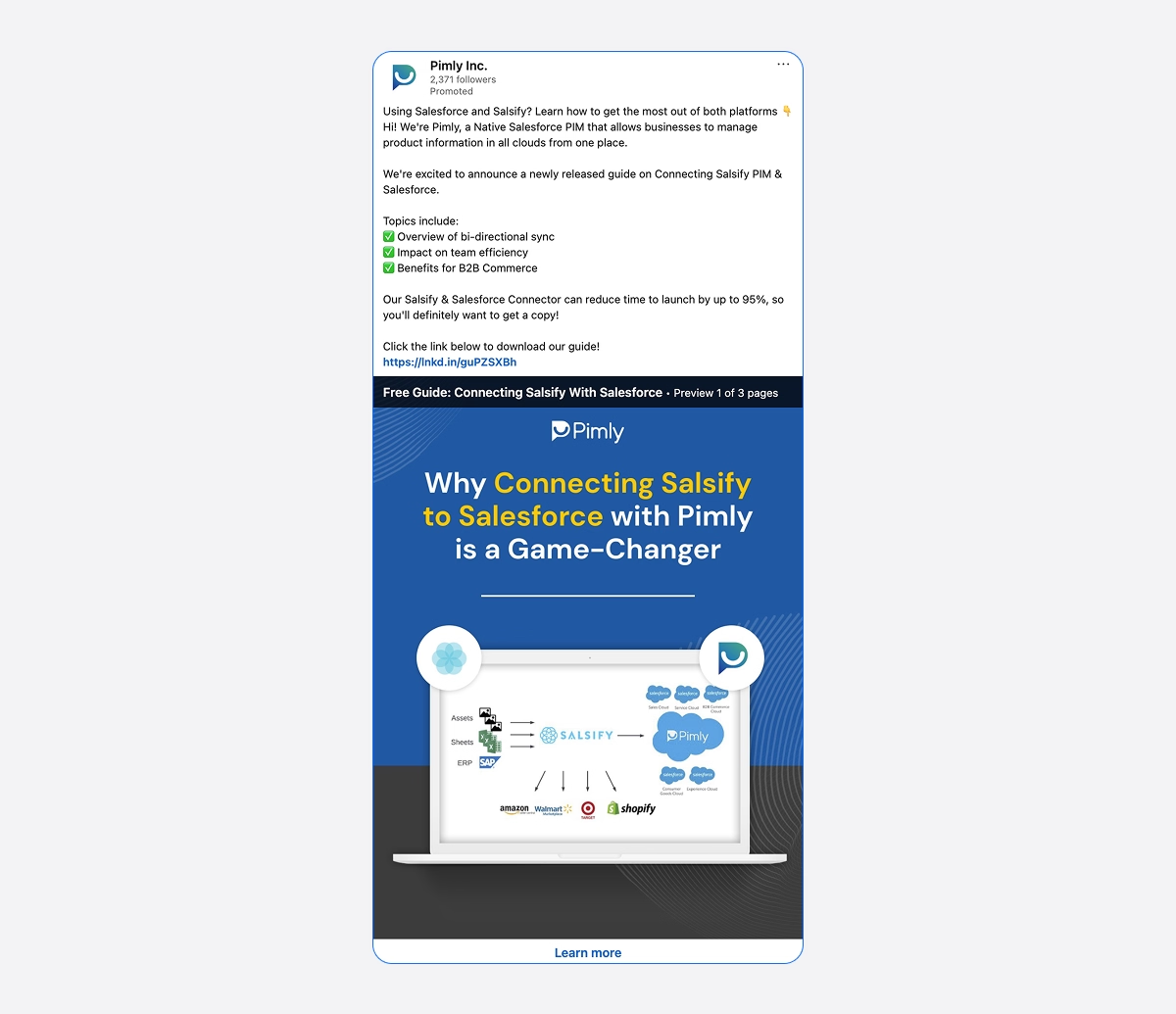
- Document Ads – In-feed previews of PDFs that let users skim content first, making them especially effective for gated guides, reports, and case studies.
- Thought Leader Ads – Promoted posts from employees or executives that keep an organic feel and tend to perform well for awareness and credibility.
- Article and Newsletter Ads – Promotion of long-form LinkedIn content that helps extend reach, reinforce authority, and grow a subscriber base over time.
- LinkedIn CTV Ads – Video ads shown on connected TV placements that use LinkedIn’s targeting to reach professional audiences outside the feed.
- Job Ads – Sponsored posts built for hiring and recruiting, not lead generation or sales campaigns.
Because these ad types appear in users’ feeds, they blend in with organic content. This often makes them feel less intrusive than other ad types, which typically leads to stronger engagement rates.
At the same time, LinkedIn has expanded the character limits for these feed-based ads, meaning they can now take the form of longer, thought-leadership-style posts or remain short and punchy. This makes it easier to align your messaging with the stage of the sales cycle you are targeting.
Sponsored Messaging
Sponsored Messaging Ads allow businesses to send paid direct messages to targeted users. By focusing on inbox placements as opposed to feed ads, Sponsored Messaging takes a more direct approach to outreach.
There are currently two types of Sponsored Messaging Ads on LinkedIn:
- Message Ads – Single-message direct outreach with one primary CTA.
- Conversation Ads – Dynamic ads with branching “choose-your-path” CTA buttons that route users to next steps.
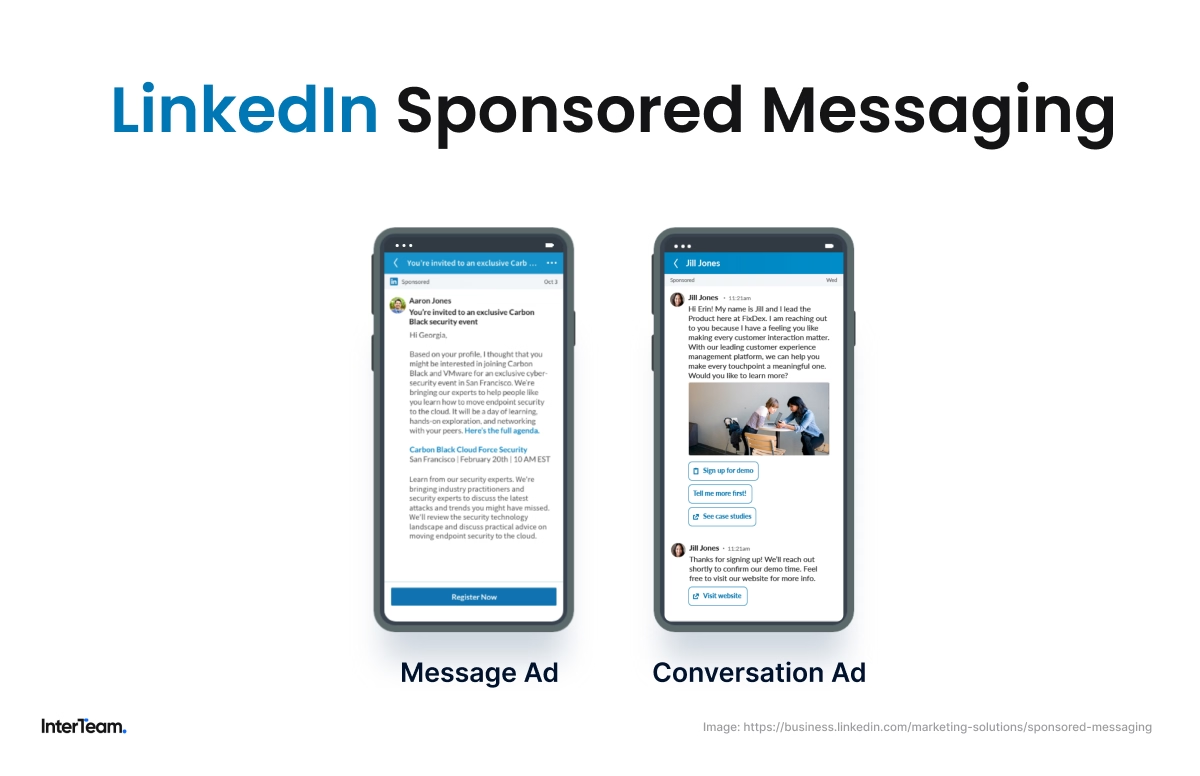
On LinkedIn, aggressive CTAs don’t tend to perform well on feed ads, but they do extremely well through Sponsored Messaging, particularly Conversation Ads.
Conversation Ads allow you to create curated conversations built around multiple-choice answers and branching pathways depending on a user’s response. This allows you to tailor messaging to specific pain points while creating direct engagement through user interaction, which can often result in much higher conversion rates for bottom-of-funnel outreach campaigns.
Text, Spotlight, and Follower Ads
Text, Spotlight, and Follower Ads are simple ad formats that appear on LinkedIn’s right rail. And since the right rail only appears on larger screens, they can be effective formats for reaching the platform’s high-intent desktop users.
Each ad format offers a unique experience:
- Text Ads – Short headline and description units that work well for low-cost visibility.
- Spotlight Ads – Dynamic, profile-based personalization that drives clicks to a specific page or offer.
- Follower Ads – Designed to grow followers and strengthen social proof.
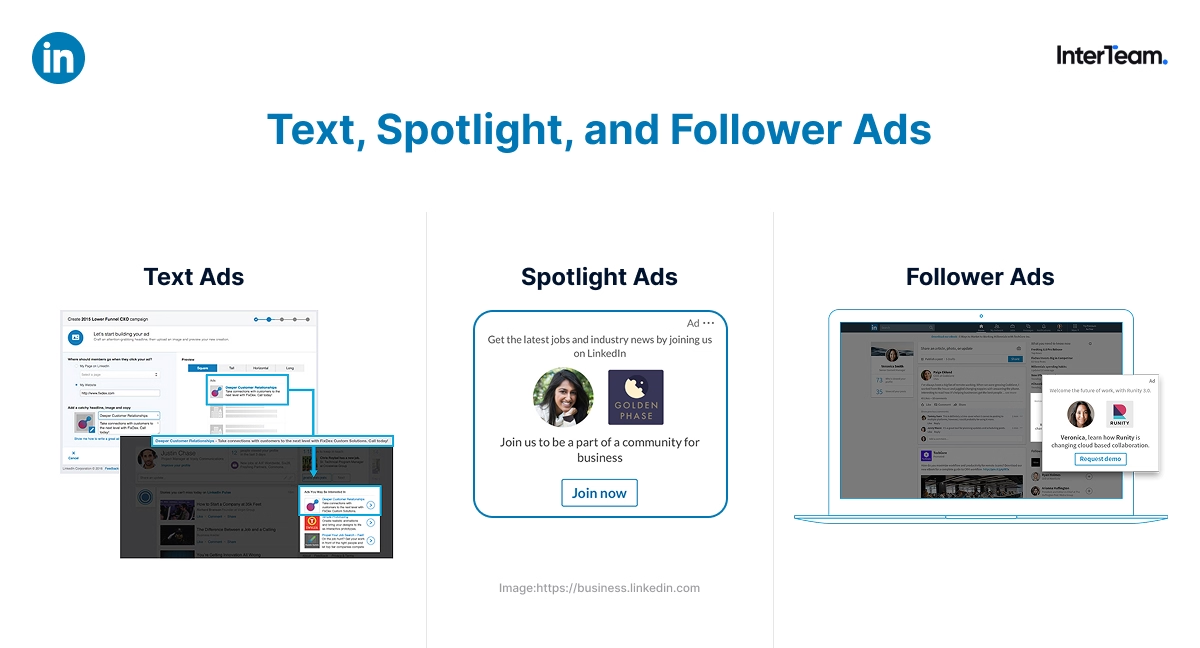
On their own, these ad types don’t tend to drive many click-through conversions, but they can be highly effective for view-through conversions. Combined with the formats’ pay-per-click bidding model, they become a strong option for maintaining visibility and supporting conversions without actually paying for a click.
That’s why we like to use these ad formats for longer evaluation cycles. By retargeting past website visitors, we maintain brand awareness throughout the sales cycle while improving the performance of feed-based ads.
Lead Generation Ads
Lead Gen Ads are not a standalone ad format, but they do enhance other LinkedIn ad types by attaching a native Lead Gen Form directly to the ad.
These Lead Gen Forms improve conversion rates by reducing the friction of the form fill.
The form can be filled out directly within the platform, reducing the fall-off that can come from external landing pages. At the same time, the form auto-fills user details, including name, email, company, and title, directly from their LinkedIn profile, allowing forms to be submitted in a single click.
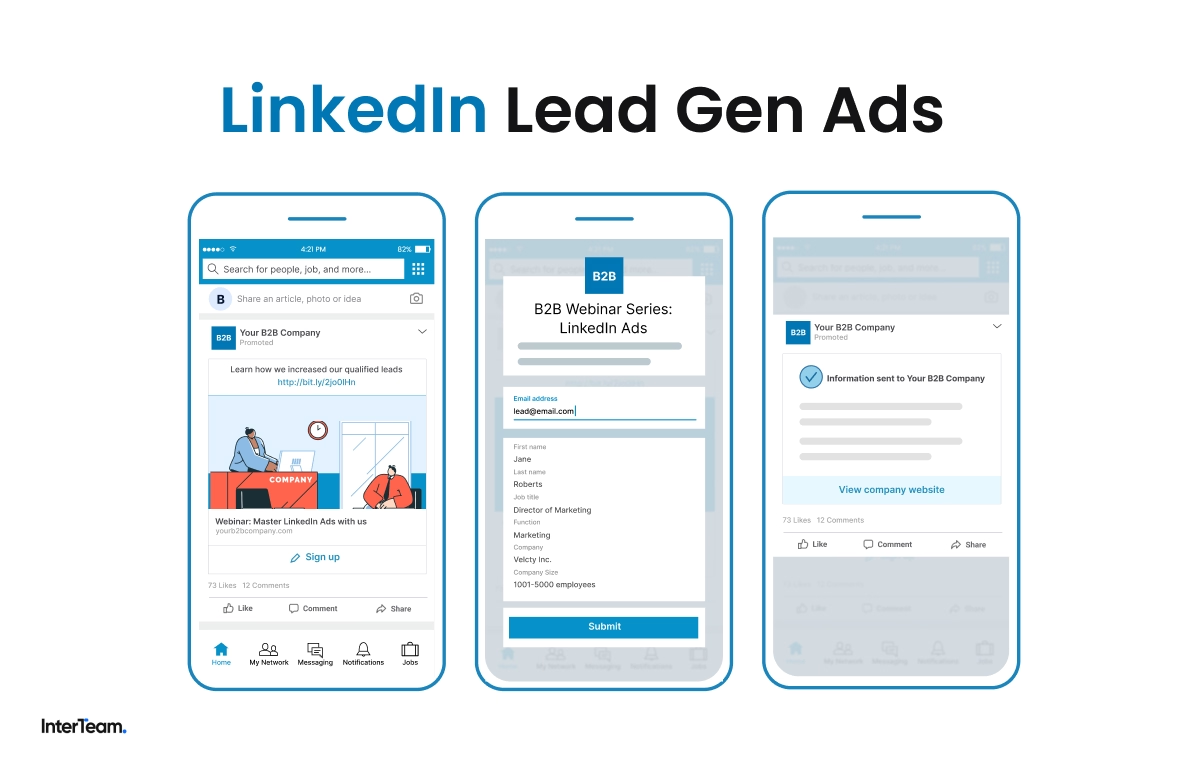
To unlock Lead Gen Forms, Lead Generation must be selected as the campaign objective. Even then, only select ad types actually support the native form feature.
These supported ad types include:
- Single Image Ads
- Carousel Ads
- Video Ads
- Document Ads
- Conversation Ads
At InterTeam, we experience the best results by using Document Ads with a Lead Gen Form and a strong lead magnet. The ad format allows us to tease the first few pages of the gated content, while the native Lead Gen Form allows users to easily submit their information to access the full asset.
You can check out our Complete LinkedIn Lead Gen Ads Guide for more information and helpful tips on how Lead Gen Ads can help improve the performance of your LinkedIn advertising campaigns.
LinkedIn Retargeting Strategy
LinkedIn tends to deliver strong conversion rates for bottom-of-funnel campaigns, but conversion rates for top-of-funnel campaigns are often typical for social media advertising platforms. When you consider the high CPCs of the platform and the long evaluation cycles that are common in B2B, LinkedIn tends to perform best as a retargeting channel.
At InterTeam, we like to use LinkedIn as a conversion and qualification layer in our omnichannel strategy after validating intent through other, more affordable channels.
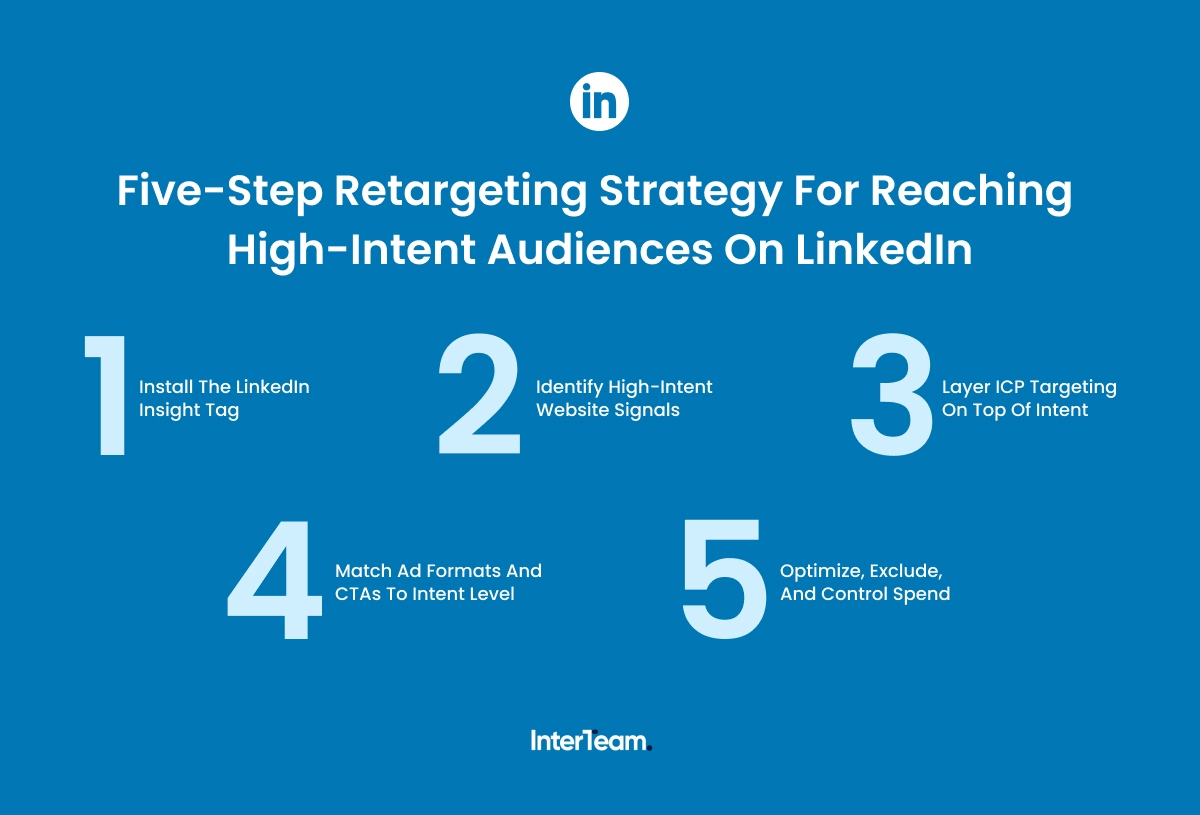
Below is our five-step retargeting strategy for reaching high-intent audiences on LinkedIn that helps us reduce our CPLs and drive scalable pipeline for our clients.
For more help, you can check out our Complete LinkedIn Retargeting Guide.
Step 1: Install the LinkedIn Insight Tag
The LinkedIn Insight Tag should be installed as part of your account setup, and it is the key to creating retargeting audiences on the platform.
The tag unlocks pivotal retargeting features, including:
- Website retargeting
- Conversion tracking
- Matched Audiences
If you missed this step during account setup, you’ll need to go back and install the tag through Google Tag Manager or by adding the code directly to your website.
Step 2: Identify High-Intent Website Signals
On LinkedIn, you don’t want to retarget all website visitors. Doing so will result in lower lead quality and inflated CPLs.
Instead, you want to retarget based on high-intent website behaviors, and doing so requires setting up custom event triggers in GA4.
Some that we use include:
- Visits to key pages, like pricing, demo, or trial page visits
- 30 seconds or more spent on the website
- At least 50% page scroll depth
- Starting a form or free trial sign-up
- Reading case studies or bottom-of-funnel content
By building retargeting audiences based on just these key events, we focus our retargeting campaigns around past user interactions that have indicated clear purchase intent, while avoiding unqualified leads that quickly bounced from the page.
This added qualification results in smaller retargeting pools, but also comes with higher conversion rates, leading to higher-quality leads at lower CPLs.
Step 3: Layer ICP Targeting on Top of Intent
One of the biggest advantages of LinkedIn’s audience targeting is the ability to layer professional targeting on top of retargeting lists. This allows you to narrow your campaigns to users who have already shown purchase intent through their website behavior, while also matching your ICP based on their LinkedIn profile data.
At the same time, it’s just as important to apply exclusion audiences to remove users who don’t match your ICP.
Some common exclusions we use include:
- Students
- Entry-level roles
- Competitors
- Existing customers
- Bot traffic
By combining ICP filters with exclusion lists, you keep your retargeting campaigns focused on qualified audiences that have already shown intent, while keeping low-quality or unqualified leads out of your sales cycle.
Step 4: Match Ad Formats and CTAs to Intent Level
Once you have your retargeting audiences defined, the next step is crafting creative that resonates with the stage of the sales cycle you are targeting.
The best way to do this is to match the ad format to intent level.
For top-of-funnel and early mid-funnel campaigns, we like to use Spotlight and Text Ads to maintain brand awareness throughout the evaluation cycle. These formats’ CPC bidding structure and strong view-through conversions make them a great way to generate early-stage exposure while keeping ad spend low.
For mid-funnel campaigns, we rely on Document Ads and lead magnets to re-engage users who have shown past purchase intent but did not convert. This allows us to generate interest through a helpful resource before using LinkedIn’s native Lead Gen Ads to capture leads directly on the platform. At this stage, we use softer CTAs, like “View the Guide” and “See How It Works.”
For bottom-of-funnel campaigns, we target our highest-intent leads with Message Ads and Conversation Ads. More aggressive CTAs work well with these ad formats and allow us to generate bottom-of-funnel conversions, like demo and free trial sign-ups.
Step 5: Optimize, Exclude, and Control Spend
At this point, you can push your retargeting campaign live, but your job isn’t done. The next step is to monitor performance, adjust your exclusion lists, and control your budget to optimize your campaigns based on performance.
Common ongoing optimizations for retargeting campaigns include:
- Frequency control – Monitor how often the same users see your ads and adjust spend or exclusions to avoid overexposure and ad fatigue.
- Creative rotation – Monitor your ads and pause or rotate creatives when performance starts to dip to avoid ad fatigue.
- Audience exclusions – Monitor performance by audience and add any underperforming segments to your exclusion list to avoid wasted spend.
- Window adjustments based on sales cycle – Test and adjust lookback windows to retarget audiences at different intervals to see what works best for your sales cycle.
Retargeting audiences are smaller by design, but through continual testing and optimization, you can refine them even further to concentrate on your highest-intent audiences, which almost always leads to higher CTRs, lower CPLs, and better SQL rates than LinkedIn prospecting.
Tracking, Attribution & UTMs
Proper tracking and attribution is pivotal to a successful LinkedIn Ads campaign. Not only do they allow you to test and adjust ad performance based on measurable business outcomes, but they also provide the platform with the data it needs for the algorithm to optimize delivery.
Here are our best practices for setting up proper tracking and attribution that allow us to optimize our LinkedIn campaigns around pipeline, not just top-of-funnel conversions.
Set Up and Verify Conversion Tracking From Day One
Conversion tracking needs to be set up before you launch any campaigns, and if you’ve been following this guide closely, this should already be completed as part of your account setup.
If you haven’t done so already, you need to go back and do it now:
- Start by installing the LinkedIn Insight Tag through Google Tag Manager
- Set up custom conversions for GA4 events, such as form fills, demo requests, and downloads
- Add custom event triggers for high-intent signals, including time on page and scroll depth
- Import offline conversions from your CRM for full-funnel visibility
This is the minimum tracking setup we recommend, and it gives you everything you need to measure performance, optimize toward qualified actions, and build retargeting audiences based on real intent signals.
Connect LinkedIn Ads to Your CRM For Full Funnel Visibility
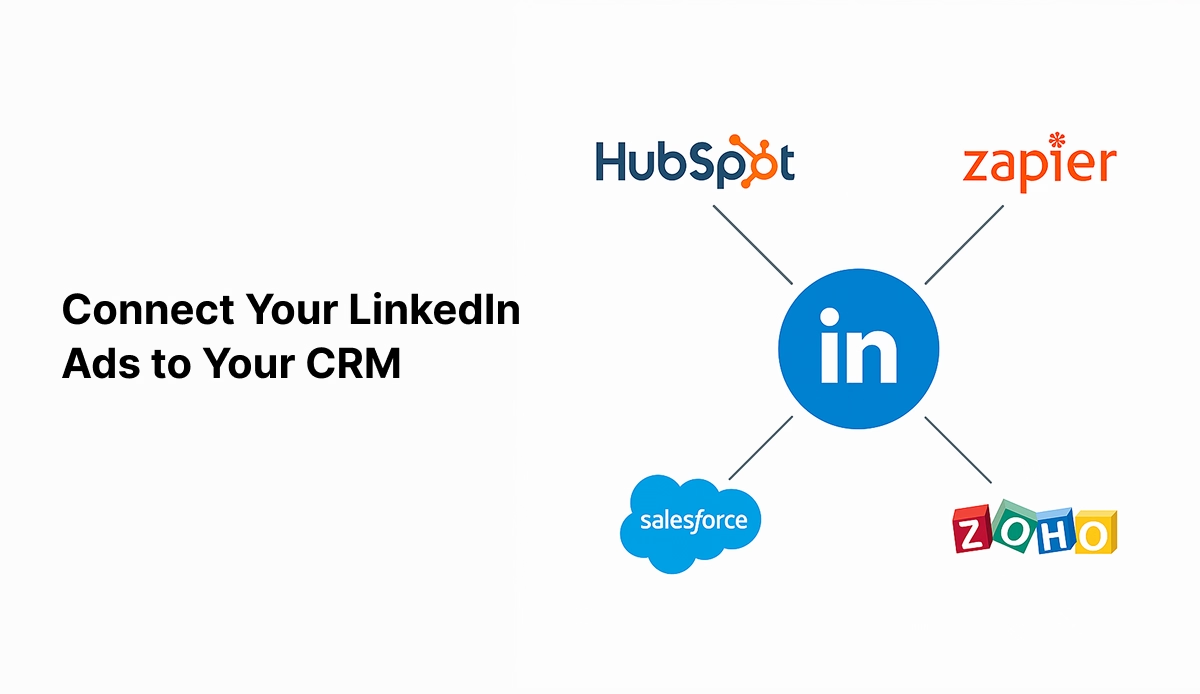
LinkedIn Campaign Manager and the Insight Tag can track on-platform engagement and website actions, but they have limited visibility into what happens after a lead is captured. To track how your campaigns translate into pipeline, you need to connect your LinkedIn Ads to your CRM.
Here is a quick guide:
- Sync your CRM (HubSpot, Salesforce, etc.) with LinkedIn Ads
- Pass UTMs and LinkedIn click data into lead records
- Define and standardize lifecycle stages such as MQL, SQL, Opportunity, and Closed Won
- Import offline conversions so LinkedIn can optimize toward qualified down-funnel actions
- Build CRM-based audiences to include high-value segments and exclude customers or disqualified leads
When set up correctly, this allows you to evaluate and optimize campaigns based on down-funnel conversions, like SQLs and opportunities.
Use Account-Level UTMs for Clean Attribution
Inconsistent UTMs are one of the most common causes of broken attribution in LinkedIn Ads. When UTMs are applied manually at the campaign or ad level, it’s easy to introduce errors that lead to missing or unreliable data in GA4 and your CRM.
To avoid this, UTMs should be set at the account level, not manually per campaign. Account-level UTMs ensure consistency across all campaigns and prevent common attribution issues.
Luckily, LinkedIn allows you to attach dynamic UTM parameters, making it easier to track performance by account and campaign without manual tagging.
Our recommended account-level UTMs include:
- utm_source=linkedin
- utm_medium=paid_social
- Dynamic identifiers such as LinkedIn account ID and campaign name
It’s important to note that some parameters, such as ad set name or content-level UTMs, may still need to be added at the ad set or ad level if you use them in your reporting.
You can check out the video below for more help on how to set up your account-level UTMs.
LinkedIn Ads Best Practices
At this point in our guide, you should have the foundation of an effective LinkedIn Ads campaign. However, the best results come from ongoing testing, analysis and refinement built from trial and error.
Having run hundreds of campaigns and managed hundreds of thousands of dollars in ad spend, we've developed a clear understanding of what works and what doesn't.
Below are a few of the best practices we use at InterTeam to ensure we reach high-intent audiences while lowering CPLs to generate scalable pipeline for our clients.
1. Prioritize Control Over Automation
LinkedIn offers automated bidding strategies that can feel convenient, especially for new advertisers. But on a high-CPC platform like LinkedIn, control almost always beats convenience. That’s why we recommend always using manual bidding.
Automated strategies tend to prioritize delivery over efficiency. Manual bidding gives you direct control over cost per click, allowing you to test deliberately and concentrate spend on your highest-intent audiences, which leads to more efficient campaigns and lower CPLs over time.
2. Build Campaigns Around Intent
Broad targeting is one of the fastest ways to waste money on LinkedIn.
The strongest campaigns are built by layering:
- High-intent website signals
- Retargeting audiences
- Strict ICP filters (role, seniority, company size)
Campaigns should filter traffic, not maximize impressions. Fewer, higher-intent clicks almost always outperform scale-driven approaches when it comes to lead quality and pipeline.
3. Match Ad Formats to Funnel Stage
Each LinkedIn ad format serves a different role in the sales funnel. Campaign performance improves when formats and CTAs align with intent.
For example, this is what types of ads we use at different stages of the funnel:
- Awareness: Text Ads, Spotlight Ads
- Consideration: Document Ads, Carousel Ads, Video Ads
- Conversion: Lead Gen Ads, Conversation Ads, Message Ads
4. Test Aggressively and Scale What Converts
LinkedIn campaigns should never launch with a single ad variation.
A/B testing is essential to offset higher CPCs and identify what actually resonates with your audience. Start with multiple creatives, change one variable at a time, and pause ads early if they generate impressions without engagement.
Scale based on KPI that result in real business outcomes, like:
- Conversions
- Lead quality
- Pipeline impact
For more help optimizing your ads, check out our Guide to A/B Testing LinkedIn Ads.
Work With a LinkedIn Ads Expert
Learning to advertise on LinkedIn takes time and testing, and on a high-CPC platform, that learning curve can cost thousands of dollars in wasted ad spend. It is much easier to work with an expert.
InterTeam is a leading LinkedIn Ads agency with the experience and know-how to turn LinkedIn campaigns into a scalable pipeline of qualified leads.
Book a free strategy call and let’s build a LinkedIn strategy that drives real revenue.
FAQs
Template question
Template text answer



Want to see if paid ads would work for your business?